How to use “Camera Continuity” to macOS Mojave
One of the new features macOS Mojave is “Camera Continuity”, which allows you to add photos and scanned documents much faster than before. In this tutorial we will explain how this feature works.
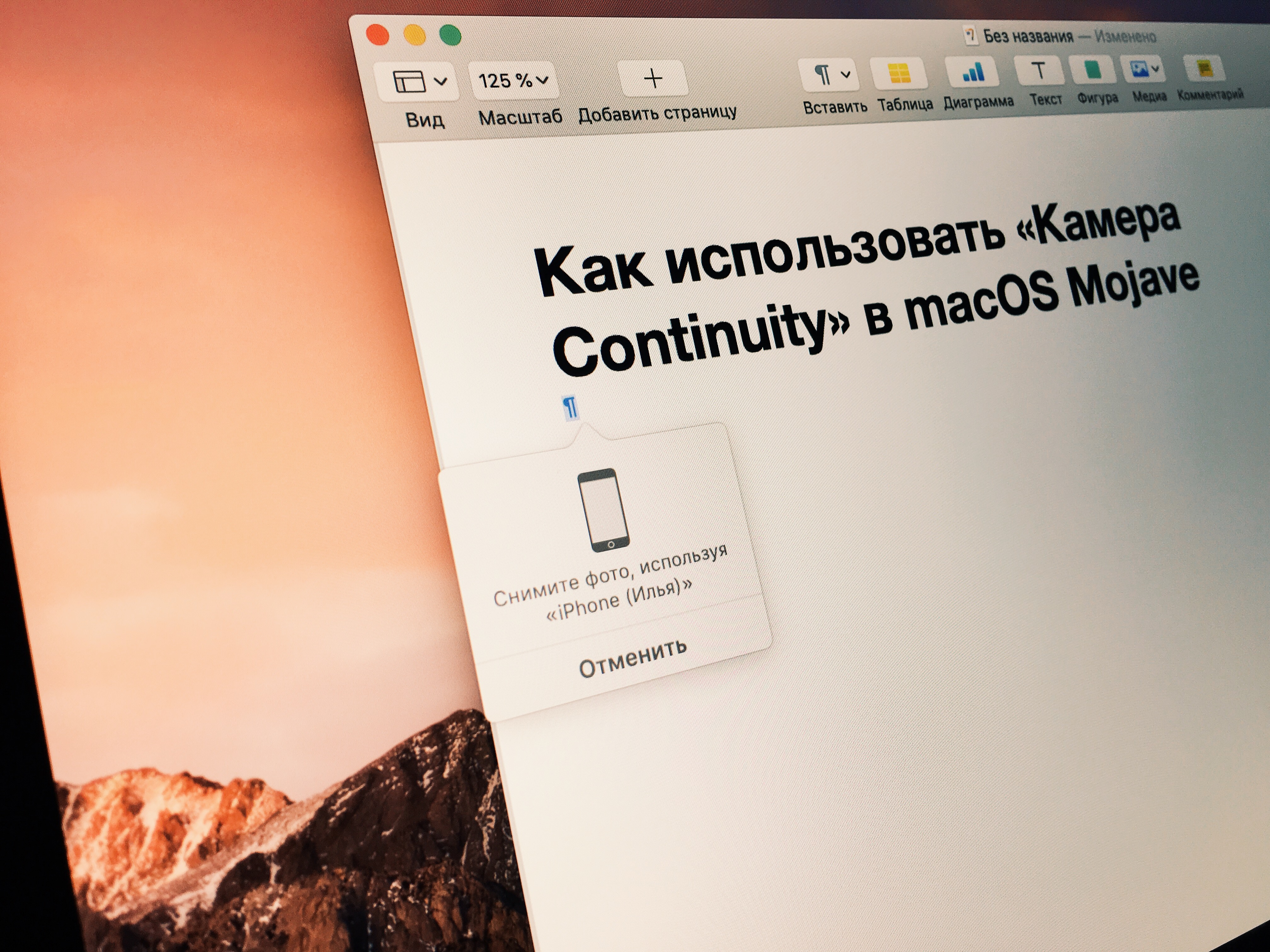
Will need to start the application that implements support for “Camera Continuity”. This may be one of the standard programs on macOS Messages, Mail, Notes, Pages, Numbers and Keynote. Some third-party app has also received support “Camera Continuity” — for example, Scrivener and Airmail.
I will show how the functions work on the example Pages, but the steps are identical in all other applications.
In addition to the appropriate application, it is necessary that the device was configured as follows:
- Mac and iOS smartphone connected to wifi and have Bluetooth turned on.
- Both devices must be signed into iCloud using the same Apple account ID.
- The computer must be running macOS Mojave, on your smartphone — iOS 12.
How to use “Camera Continuity” to macOS Mojave